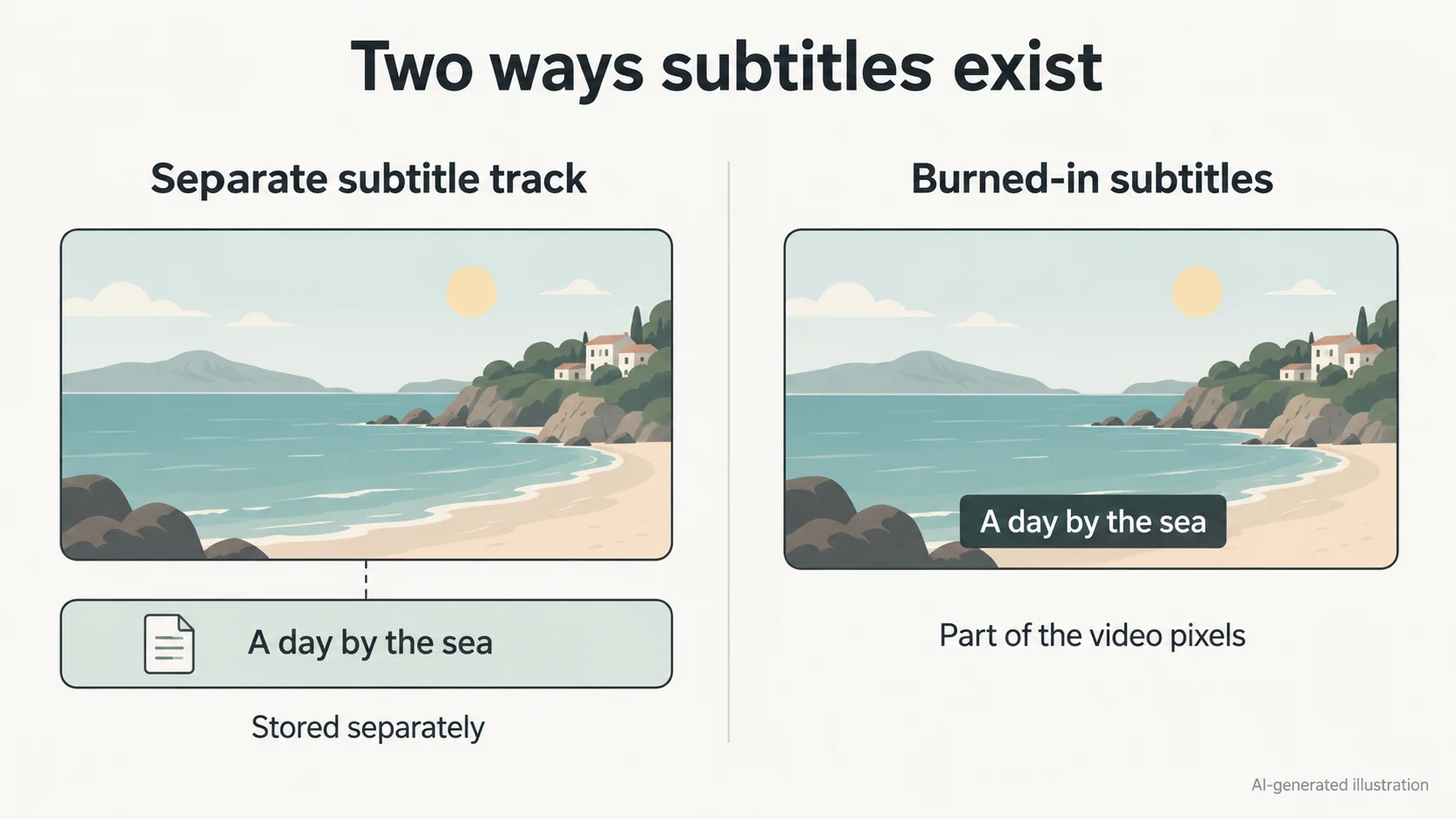
The player can hide it
This is a soft subtitle. Disable or remove the subtitle track.
remove subtitles from video
Clean subtitles that have become part of the visible frame and rebuild the area they covered.

If subtitles can be disabled or selected separately, remove the subtitle track in a player, editor, or video container.
This uses the live product workflow. Short, specific English prompts are usually steadier.
Short English prompts usually produce the most stable result. Your prompt is sent as written.
This owned demo shows the source clip and real processed result without presenting it as a page-specific result.
Selectable subtitles do not need inpainting. Only burned-in pixels require frame reconstruction.
This is a soft subtitle. Disable or remove the subtitle track.
Remove or replace the separate subtitle file.
This is usually burned-in text and fits this tool.
Describe subtitle color and lower-frame placement so the tool can locate the text and reconstruct behind it.
Check the player for a separate subtitle track first.
Name the color, number of lines, and frame area.
Inspect people, hands, and complex texture crossing the subtitle area.
Describe visible styling and placement. You do not need to transcribe the words.
remove the white burned-in subtitles at the bottomremove the two yellow subtitle lines in the lower centerremove the black caption box at the bottom of the frameReconstruction becomes harder when subtitles cover people, fast motion, or detailed texture.
Describe color, position, appearance, and motion instead of using a vague pronoun.
Short footage, stable backgrounds, and limited occlusion usually produce more consistent frames.
Check edges, texture, motion, and audio before using the processed video in a final edit.
This tool does not edit subtitle tracks. Use an editor or remuxing tool that supports container tracks.
Yes, describe the line count, color, and lower-frame position. Review any person, hand, product, or detailed texture that crosses behind the subtitle region.
Yes. Download the cleaned video, inspect the rebuilt lower frame, then add a new selectable subtitle track or a new burned-in design in your editor.
A solid caption box hides a larger part of the frame, so the system has less original background information and must reconstruct a wider area.
Create and verify an account to test one clip up to 5 seconds and 50MB. If the encoded duration exceeds the limit by only one frame, the browser trims the clip and processes the first 5.0 seconds. The trial is not unlimited.
ObjectRemover accepts MP4 and MOV up to 1080p and 60fps. Paid plans support files up to 500MB.
Sources are deleted 24 hours after a job ends. Results stay for 7, 30, 60, or 90 days by plan.
You can choose whether to preserve source audio when submitting the job. Listen to the complete download afterward to confirm duration, sync, and content.
The result must be encoded as a new video. Upload the highest-quality source available and avoid repeated compression or low-quality social-media downloads before processing.
You can try, but describing one clear target per pass is usually steadier and makes it easier to identify which target or time range needs another attempt.
Trim to one continuous shot and add target color, position, appearance, and motion. If the target overlaps the subject for a long time, use a desktop editor with masks and tracking.
Confirm the text cannot be disabled, then describe its color and placement.