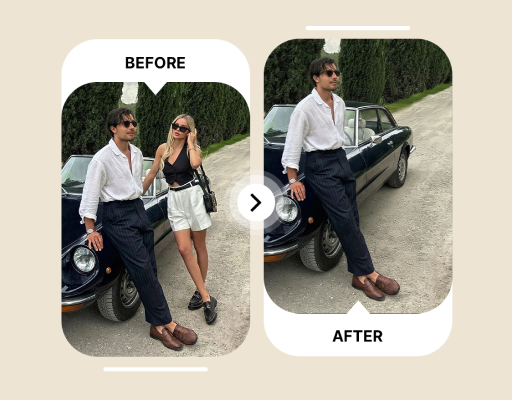
how to remove a person from a video

How to Remove People from Video

Write a prompt using clothing, position, and motion, then review reconstruction along the person path.

How to Remove People from Video
Cleanup scenario from our owned mediaremove the person in a blue coat walking behind us
One 5-second verified-account trialMP4 or MOV, up to 1080pPrivate uploads and plan-based retention

Quick answer

Upload a short clip where the person is visible, identify them by clothing and frame position, then review the area along their path.

Complete person removal tutorial

How to remove a person from video and keep the background natural

Removing a person from video is harder than removing a small static object because people move, cast shadows, and may overlap the subject or background. A reliable workflow starts by deciding whether the person is identifiable, then trimming the shot, describing clothing and position, and reviewing the entire path they crossed.

What this guide answers

You want to delete a passerby, background person, or accidental photobomber and understand when online AI, a mobile browser, or desktop editing software is the right choice.

Topics covered

remove a person from videoremove background people from videoAI person remover for videoerase a passerby onlineremove moving people from footage

Check whether the person is a good target

Results are usually steadier when the unwanted person is easy to distinguish and the surrounding background is visible in nearby frames.

Start with a background person

A passerby separated from the main subject is a practical first target. A large foreground person creates a much larger area to reconstruct.

Find distinct clothing

Color, hats, bags, and frame position help distinguish one person from a group and reduce the risk of removing the main subject.

Measure the overlap

A brief crossing over a wall or floor is easier. Long overlap with a face, hand, or product is better handled with manual masks.

Notice shadows and reflections

A floor shadow, mirror reflection, or image in water can reveal that the original person was present even after the body is removed.

Prefer a workflow without a full timeline?

Use the web tool to upload a short clip and describe one person or object in a specific English prompt.

Open the tool

A real processing example

This owned demo shows the source clip and real processed result without presenting it as a page-specific result.

Original video
Processed result

Choose a person the tool can identify

A background passerby is usually easier than someone who overlaps the main subject for a long time.

Separated from the subject

The person silhouette does not continuously overlap the main subject.

Distinct clothing

Color and appearance remain identifiable across frames.

Background has context

Surrounding frames contain enough texture to infer the hidden area.

Person removal workflow

Trim the segment, describe the person, then inspect the full movement path.

Trim the clip

Keep only the continuous segment where the person should be removed.

Describe the person

Use clothing, position, motion, and relation to the main subject.

Review the path

Inspect shadows, reflections, texture, and overlap with other people.

Person description patterns

Avoid remove him. Use features that are actually visible in the frame.

remove the person in a blue coat walking behind us
remove the tourist on the far left near the tree
remove the staff member standing behind the table

Identify the person by clothing, position, and motion

Avoid a prompt such as “remove him” or “remove the person.” A frame may contain several people, and a pronoun does not establish which one is unwanted. Use a description such as “remove the person in a blue coat walking behind the subject” or “remove the tourist on the far left beside the tree.”

Appearance changes as a person moves, so combine two kinds of evidence. Clothing plus position, or motion plus a nearby landmark, is more dependable than a single feature. Choose details that stay visible through most of the clip.

Clothing and accessories: blue coat, white hat, red backpack
Frame position: behind the subject, right of the doorway, far left
Motion: crossing left to right, standing behind the table, walking toward the exit
Relationship: farthest from the camera, beside the lamp, between the two subjects

Trim around the time the person appears

Keep only the continuous range where the person must disappear. Remove unrelated footage before and after the appearance, and split at camera cuts. This keeps the prompt tied to one person and one scene.

If the person becomes fully hidden and later returns, consider processing two separate segments. A long occlusion makes identity and motion harder to maintain. Separate clips also let you describe the visible clothing and position for each moment.

Begin review on a frame where the full silhouette is visible
Avoid combining several shots and scenes in one task
Describe the new position when the person reappears
Use the source file instead of a heavily compressed social download

Review reconstruction along the full movement path

Problems may appear outside the center of the original body. Arms, hair, bags, and legs travel across a wider path and can leave brief remnants. Play the result normally, then scrub these areas for flicker or stretched texture.

Inspect every overlap with the main subject. The subject outline, clothing, and hair should not be reconstructed along with the unwanted person. Shadows and reflections may need a separate pass or a manually controlled composite.

Check hair, fingers, shoes, and carried items
Watch whether a floor shadow remains or disappears abruptly
Confirm that the main subject outline is unchanged
Slow down playback where several people cross

Choose online person removal or desktop editing

Choose according to person size, overlap with the subject, and whether frame-level control is required.

Online AI person removal

Best for
Background passersby, short shots, distinct clothing, and a quick first attempt.
Tradeoff
Simple to run, but offers less control over complex crossings and large missing areas.

Mask and tracking

Best for
Predictable motion, edges that need manual correction, and shots with a clean nearby patch.
Tradeoff
Provides frame-level correction, but tracking setup and review take time.

Clean plate compositing

Best for
Foreground people, long occlusion, commercial delivery, and shots requiring precise control.
Tradeoff
Offers the strongest control, but requires professional software and suitable background material.

Common person removal problems

First decide whether the failure comes from target identification, overlap, or background reconstruction.

The main subject was removed

Add clothing color, frame position, and motion, and state that the target is behind or beside the subject.

Only part of the person disappeared

Include hats, bags, and other items moving with the person, then shorten the clip if needed.

The path flickers

Check whether the background is visible in nearby frames. A moving camera or dense crowd may require manual tracking.

A shadow or reflection remains

Review it as a separate visual target and use another pass or compositing when necessary.

The overlap with the subject is warped

Split before and after the overlap or use a manual mask that protects the subject edge.

Check before downloading

Play the result once at normal speed, then inspect difficult frames before final delivery.

The body, hair, accessories, and carried items are removed
No brief remnant appears as the person enters or leaves
The main subject outline and motion remain intact
Background texture, shadows, and reflections look natural in motion
Audio, resolution, and duration meet the delivery requirement
You own the footage or have permission to edit it

Start with one clear background passerby

Online AI is most useful when the person is separated from the subject, wears distinct clothing, and reveals the background before or after passing. Move early to masks, tracking, and clean plate control for close foreground people, long overlap, or production-critical footage.

A larger person means more reconstruction

A close foreground person or long subject overlap may require a desktop editor and manual masks.

Name a specific target

Describe color, position, appearance, and motion instead of using a vague pronoun.

Short clips are steadier

Short footage, stable backgrounds, and limited occlusion usually produce more consistent frames.

Review the result

Check edges, texture, motion, and audio before using the processed video in a final edit.

Person removal tools and device guides

Person removal guide questions

Can I do this on a phone?

You can use the web tool in iPhone Safari, but it is not a native app. Keep the page open until upload completes.

What does the free trial include?

Create and verify an account to test one clip up to 5 seconds and 50MB. If the encoded duration exceeds the limit by only one frame, the browser trims the clip and processes the first 5.0 seconds. The trial is not unlimited.

Which video files are supported?

ObjectRemover accepts MP4 and MOV up to 1080p and 60fps. Paid plans support files up to 500MB.

How long are files stored?

Sources are deleted 24 hours after a job ends. Results stay for 7, 30, 60, or 90 days by plan.

Can the processed video keep its original audio?

You can choose whether to preserve source audio when submitting the job. Listen to the complete download afterward to confirm duration, sync, and content.

Will processing reduce video quality?

The result must be encoded as a new video. Upload the highest-quality source available and avoid repeated compression or low-quality social-media downloads before processing.

Can I process several targets at once?

You can try, but describing one clear target per pass is usually steadier and makes it easier to identify which target or time range needs another attempt.

What should I do if the first result is not clean?

Trim to one continuous shot and add target color, position, appearance, and motion. If the target overlaps the subject for a long time, use a desktop editor with masks and tracking.

Start with a background person

Choose a short clip and describe the person by clothing color and position.

Open the tool