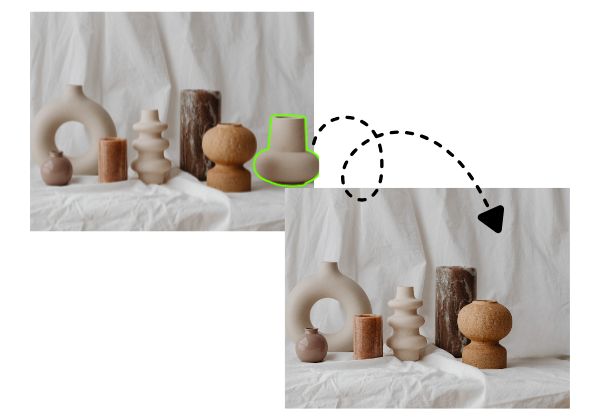
video inpainting

AI Video Inpainting

Understand how a system tracks a target, removes its pixels, and reconstructs the covered area across frames.

AI Video Inpainting
Cleanup scenario from our owned mediaremove the sign and rebuild the wall behind it
One 5-second verified-account trialMP4 or MOV, up to 1080pPrivate uploads and plan-based retention

Quick answer

Video inpainting does more than cover a target. It must keep background texture, motion, and edges consistent across consecutive frames.

Technical guide

How video inpainting works and where it reaches its limits

Video inpainting reconstructs an area after a person or object is removed by using spatial and temporal context. Unlike image inpainting, it must also keep texture, motion, lighting, and perspective coherent from frame to frame. This guide explains the practical pipeline and its limits without treating it as an unconditional delete button.

What this guide answers

You want to understand the relationship between video inpainting, AI video restoration, background completion, and object removal, then decide whether the method fits your footage.

Topics covered

video inpaintingAI video inpaintingvideo background completiontemporal consistencyobject removal reconstruction

Understand the input, target region, and hidden background

The result depends on how much useful information can be recovered from the current frame and its neighbors.

Target region

The system first needs to know which pixels belong to the unwanted target. A prompt, mask, or tracking result can define that region.

Spatial context

Color, lines, and texture surrounding the target in the same frame provide clues for local background reconstruction.

Temporal context

Earlier and later frames may reveal the real background after the target moves, which is a major advantage over single-image inpainting.

Consistency constraint

A plausible still frame is not enough. The generated region must avoid flicker, drift, and abrupt changes during playback.

Prefer a workflow without a full timeline?

Use the web tool to upload a short clip and describe one person or object in a specific English prompt.

Open the tool

A real processing example

This owned demo shows the source clip and real processed result without presenting it as a page-specific result.

Original video
Processed result

What video inpainting solves

After a target is removed, the system must infer and generate the area that was previously hidden.

Target identification

A prompt helps identify the person or object that should be processed.

Temporal consistency

Generated areas need to remain coherent as the camera and background move.

Texture reconstruction

The system uses surrounding frames to infer hidden color and texture.

From prompt to processed video

ObjectRemover submits your prompt, video, and audio preference to the video processing workflow.

Identify the target

Locate the target area using the prompt and video content.

Process across frames

Maintain the target across consecutive frames where it appears.

Reconstruct and encode

Generate the covered area and produce the result with your audio preference.

The technical workflow still needs a clear prompt

A specific prompt helps separate the target from the subject you want to keep.

remove the sign and rebuild the wall behind it
remove the person in the background near the doorway
remove the cable across the floor

The main stages of a video inpainting pipeline

The first stage is target localization. A prompt, manual mask, or segmentation model identifies the unwanted region and follows it through motion. An unstable boundary causes remnants or damage before reconstruction even begins.

The next stage infers the hidden background from surrounding texture and neighboring frames. Temporal refinement and encoding then try to keep color, detail, and motion coherent across the final video.

Identify and segment the target
Track or propagate the region across frames
Generate background from spatial and temporal references
Reduce flicker and encode a new video

Why temporal consistency determines perceived quality

Image inpainting needs one still to look plausible. Video inpainting needs dozens or hundreds of frames to remain plausible together. Independent generation can make wall texture change constantly, straight lines wobble, or noise flow unnaturally.

Camera motion adds scale, angle, and perspective changes. A successful fill must move with the scene instead of merely covering the target. Normal playback, slow playback, and frame scrubbing reveal different classes of temporal artifact.

Texture should not jump between frames
Lines and edges must preserve geometry
Lighting and noise should match the source
The generated area must follow camera motion

The system cannot see the true hidden content

Video inpainting predicts a background. It does not recover a guaranteed original that was simply hidden. If the target covers the same area for the entire shot and no neighboring frame reveals it, the system can only generate something contextually plausible.

Do not rely on automatic inference to restore essential text, brand details, faces, product structure, or evidentiary content. Tasks requiring factual reconstruction need a clean plate, another camera angle, or controlled compositing material.

A plausible result is not proof of the original appearance
Uncertainty grows with the missing area
Repeating texture is easier than unique detail
Important content requires real reference material

When video inpainting is the right method

Choose automated inpainting or manual compositing based on background evidence, target size, and delivery requirements.

Automated video inpainting

Best for
Short shots, small targets, visible background context, and fast content cleanup.
Tradeoff
Fast to test, but it cannot guarantee the true hidden background.

Tracked patch

Best for
Nearby repeatable texture, predictable motion, and shots needing edge control.
Tradeoff
Requires tracking and feathering, but remains manually adjustable.

Clean plate composite

Best for
Large occlusion, professional delivery, subject overlap, and work requiring factual detail.
Tradeoff
Takes more preparation, but gives the editor the clearest control.

Diagnose video inpainting artifacts

Observe how the failure changes over time, then decide whether it comes from target selection or background generation.

The edge flickers

Target segmentation or tracking is unstable. Shorten the shot, clarify the description, or use a manual mask.

Texture flows like liquid

Temporal evidence is weak or camera motion is complex. Use a clean reference frame and tracked composite.

Straight lines bend

Perspective and geometry are not being preserved. Use software with planar tracking and controlled patch placement.

Part of the target remains

The region missed an outline, shadow, or attached item. Expand the target description or process it separately.

Color and noise do not match

Use a higher quality source and match grain, sharpness, and color in a professional finishing workflow.

Evaluate an inpainted result

Play the result once at normal speed, then inspect difficult frames before final delivery.

The target region is covered in every relevant frame
Texture does not flicker or drift during playback
Lines, edges, and perspective remain plausible
Brightness, color, sharpness, and noise match nearby pixels
The subject and essential content remain unchanged
The intended use allows a predicted background

Treat video inpainting as reconstruction, not recovery

Video inpainting can clean a shot efficiently when neighboring frames provide background evidence, the target is limited, and the scene is continuous. A clean plate and manual composite remain more dependable when evidence is missing, the occlusion is large, or exact factual detail matters.

Practical limits of video inpainting

The system cannot see the true hidden content. It infers from context, so complex occlusion needs human review.

Name a specific target

Describe color, position, appearance, and motion instead of using a vague pronoun.

Short clips are steadier

Short footage, stable backgrounds, and limited occlusion usually produce more consistent frames.

Review the result

Check edges, texture, motion, and audio before using the processed video in a final edit.

Use inpainting for a specific task

Video inpainting questions

Is video inpainting the same as image inpainting?

The core idea is similar, but video must also handle temporal consistency, motion, and occlusion across frames.

What does the free trial include?

Create and verify an account to test one clip up to 5 seconds and 50MB. If the encoded duration exceeds the limit by only one frame, the browser trims the clip and processes the first 5.0 seconds. The trial is not unlimited.

Which video files are supported?

ObjectRemover accepts MP4 and MOV up to 1080p and 60fps. Paid plans support files up to 500MB.

How long are files stored?

Sources are deleted 24 hours after a job ends. Results stay for 7, 30, 60, or 90 days by plan.

Can the processed video keep its original audio?

You can choose whether to preserve source audio when submitting the job. Listen to the complete download afterward to confirm duration, sync, and content.

Will processing reduce video quality?

The result must be encoded as a new video. Upload the highest-quality source available and avoid repeated compression or low-quality social-media downloads before processing.

Can I process several targets at once?

You can try, but describing one clear target per pass is usually steadier and makes it easier to identify which target or time range needs another attempt.

What should I do if the first result is not clean?

Trim to one continuous shot and add target color, position, appearance, and motion. If the target overlaps the subject for a long time, use a desktop editor with masks and tracking.

Test the workflow on a real clip

Upload a short clip and describe one target clearly.

Open the tool